
📶 Guide
Connect to Wi-Fi
Campus Wi-Fi is available across the whole college. Connect once and your device reconnects automatically after that.
- Network name
eduroam- Identity / Username
studentID@imco.edu.om— for example202400123@imco.edu.om- Password
- Your IMCO account password
- Devices allowed
- 2 per student (e.g. phone + laptop)
Android (phone / tablet)
- Open Settings → Wi-Fi and tap eduroam.
- Set the fields exactly as shown below, then tap Connect.
Networkeduroam
EAP methodPEAP
Phase 2 authenticationMSCHAPV2
CA certificateDo not validate
Domain(leave blank)
IdentitystudentID@imco.edu.om
Anonymous identity(leave blank)
Passwordyour account password
Android eduroam settings. On some phones “CA certificate” may be called “Don't validate” or “(Unspecified)”.
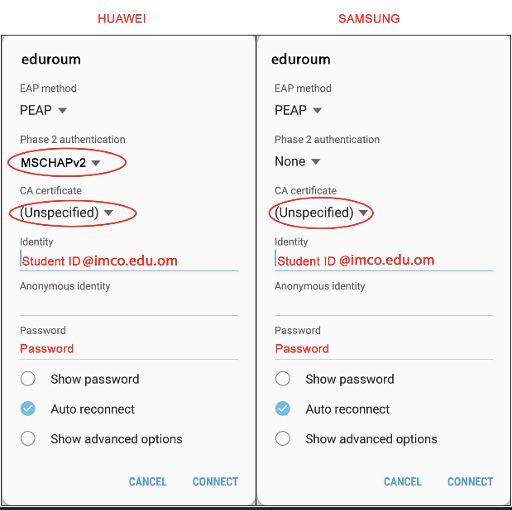
Real examples from a Huawei and a Samsung phone.
Samsung: set Phase 2 authentication to None.
Other Android phones: use MSCHAPV2.
Either way, set CA certificate to “Do not validate” / “(Unspecified)”
and Identity to studentID@imco.edu.om.
iPhone / iPad
- Open Settings → Wi-Fi and tap eduroam.
- Username:
studentID@imco.edu.om - Password: your IMCO account password. Tap Join.
- When a Certificate screen appears, tap Trust (top right).
Windows laptop
- Click the Wi-Fi icon in the taskbar and choose eduroam → Connect.
- Enter
studentID@imco.edu.omand your account password. - If asked “Continue connecting?”, click Connect.
💡
Changed your password recently? Your device will fail to reconnect with the old one.
“Forget” the eduroam network and set it up again with the new password.
ℹ️
eduroam also works at National University and at
thousands of other universities worldwide, using these same credentials.