
🔑 Guide
Reset a Forgotten Password
If your IMCO or NU account password stopped working or you forgot it, reset it yourself — no email or ticket needed.
- Reset page
- https://pass-reset.imco.edu.om/
- You'll need
- Your Student ID, your date of birth, and your civil number
- Resets
- Both your IMCO and NU accounts — computer, Wi-Fi, email, IMCO portal, NU portal, and Blackboard
- You get
- A new password generated for you and shown on screen — you don't choose it
- Also does
- Reset MFA — removes your saved phone verification so you can set it up again
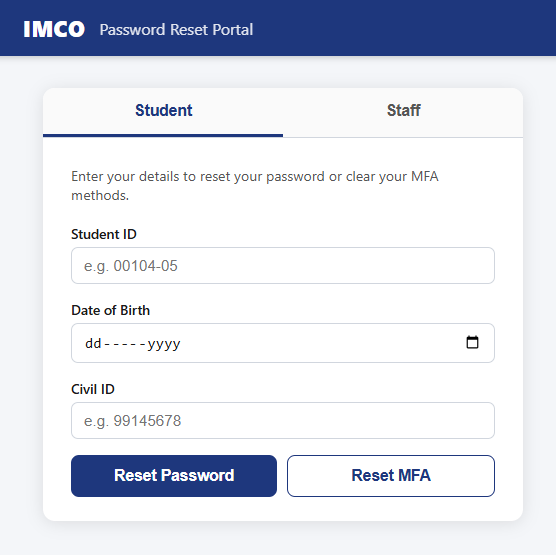
The Password Reset Portal at https://pass-reset.imco.edu.om/
Steps
- In any browser, go to https://pass-reset.imco.edu.om/
- In the Student section, press “Reset Password”.
- Fill in the form with your correct details: Student ID, Date of birth, and Civil number. Press Submit.
- The page shows “Password reset successfully” and displays a new password that the system generated for you — you don't type your own. Press Copy, or write it down exactly (it's case-sensitive and includes symbols). It is shown only once.
- Sign in with the new password. It works immediately for computer login, Wi-Fi, the IMCO portal and the NU portal. For email and Blackboard, allow about 20 minutes.
✏️
The generated password is hard to remember on purpose. Copy it into your phone's
notes or password manager straight away so you don't lock yourself out.
🔐
Changed your phone number, or can't get the verification text/call? Press
“Reset MFA” on the same page instead. It clears your saved phone verification so you
can set it up again the next time you sign in — see
Verify Your Microsoft Account.
✓
Password reset successfully
Welcome, student name
5hs%T#VP
Copy
Login to computerImmediately
Access Wi-FiImmediately
Login to IMCO / NU portalImmediately
Login to email / BlackboardAfter 20 minutes
The success screen — copy the generated password before you leave this page
⚠️
This same page resets your NU account too (NU Portal / Blackboard) —
use it instead of emailing IT. Only if the reset itself won't go through, contact
itsupport@imco.edu.om.