
🔐 Guide
Verify Your Microsoft Account
The first time you sign in to Microsoft 365, you'll be asked to set up a second way to prove it's really you. This protects your email and files if your password is ever stolen.
ℹ️
You'll verify with your mobile number — a text message code
or an automated phone call. Have your phone with you before you start.
Set up phone verification
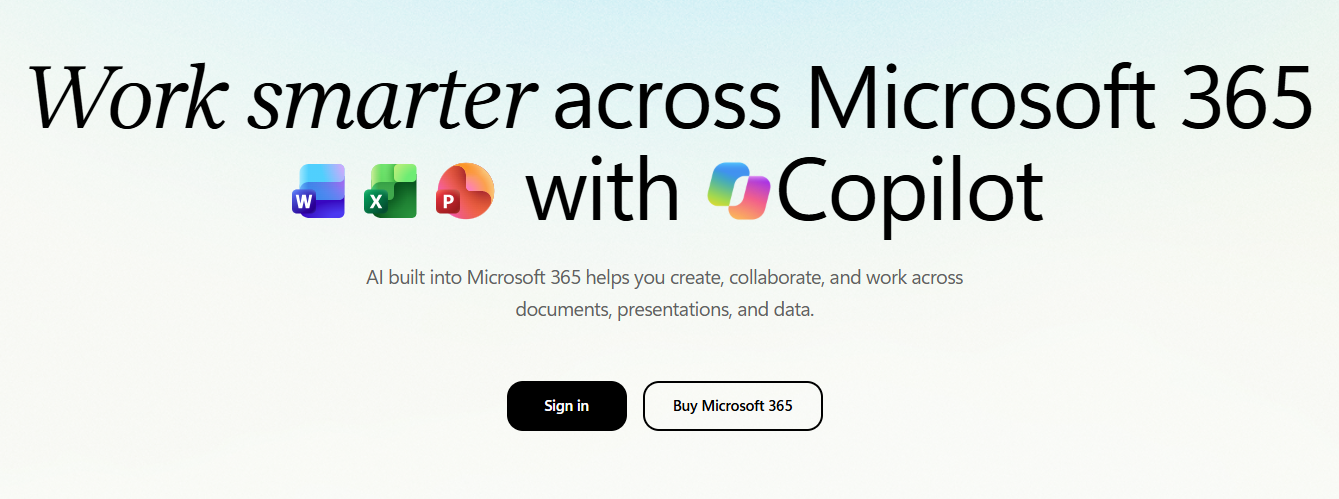
- On a computer, go to office.com and click Sign in.
- Enter
studentID@imco.edu.omand click Next.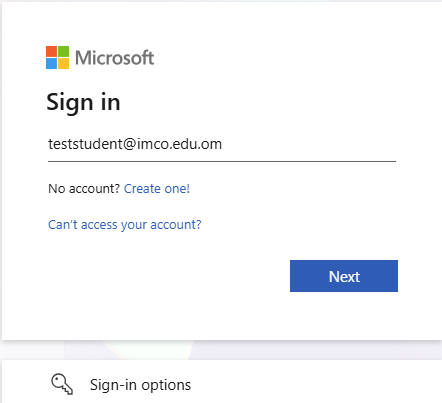
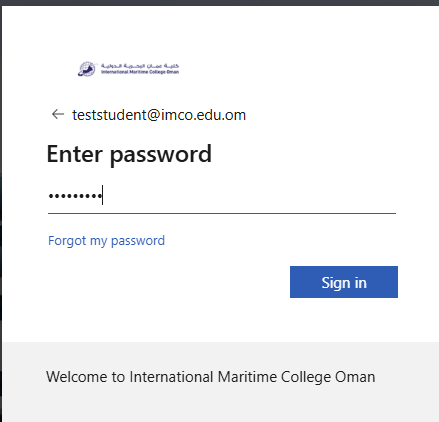
- Type your password and click Sign in.
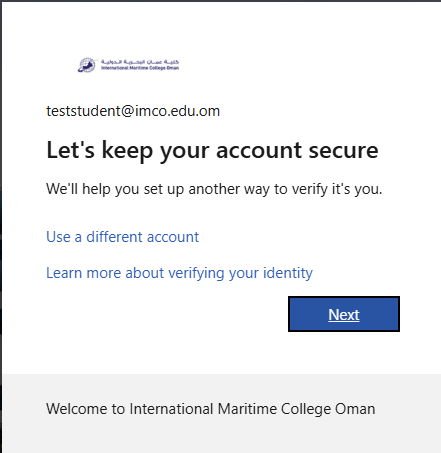
- At “Let's keep your account secure”, click Next.
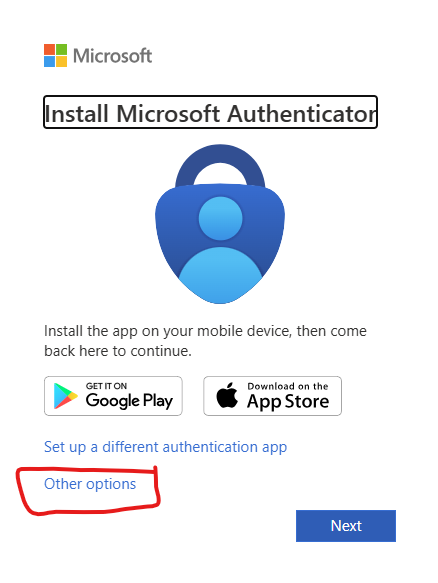
- On the “Install Microsoft Authenticator” screen, do not install the app —
click Other options at the bottom.
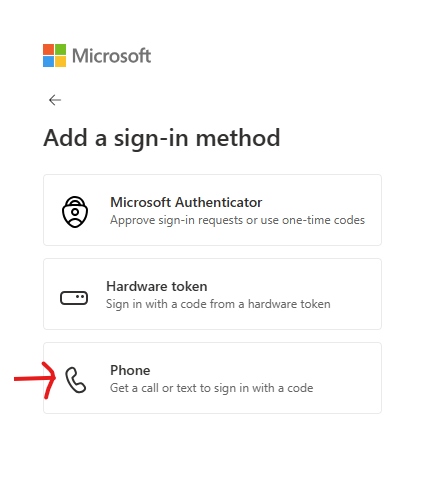
- Under “Add a sign-in method”, choose Phone.
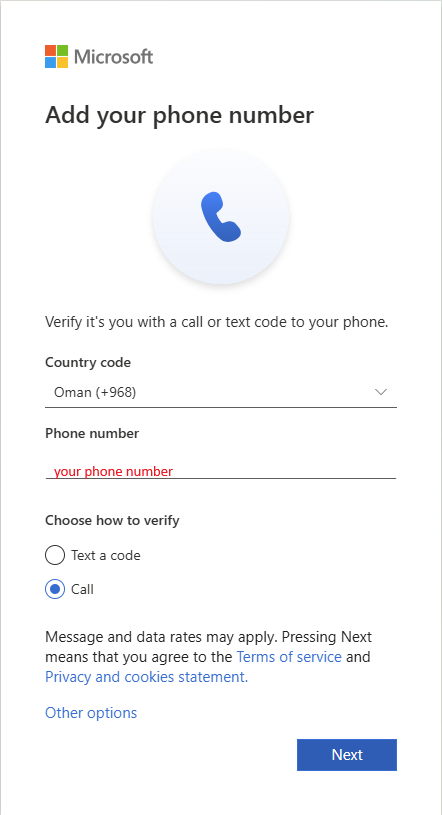
- Set Country code to Oman (+968), type your mobile number, then choose
Text me a code or Call me. Click Next.
- If you chose text: type the code from the SMS and click Next.
If you chose call: answer the automated call (it comes from a+1number) and press # on your phone keypad when asked to confirm.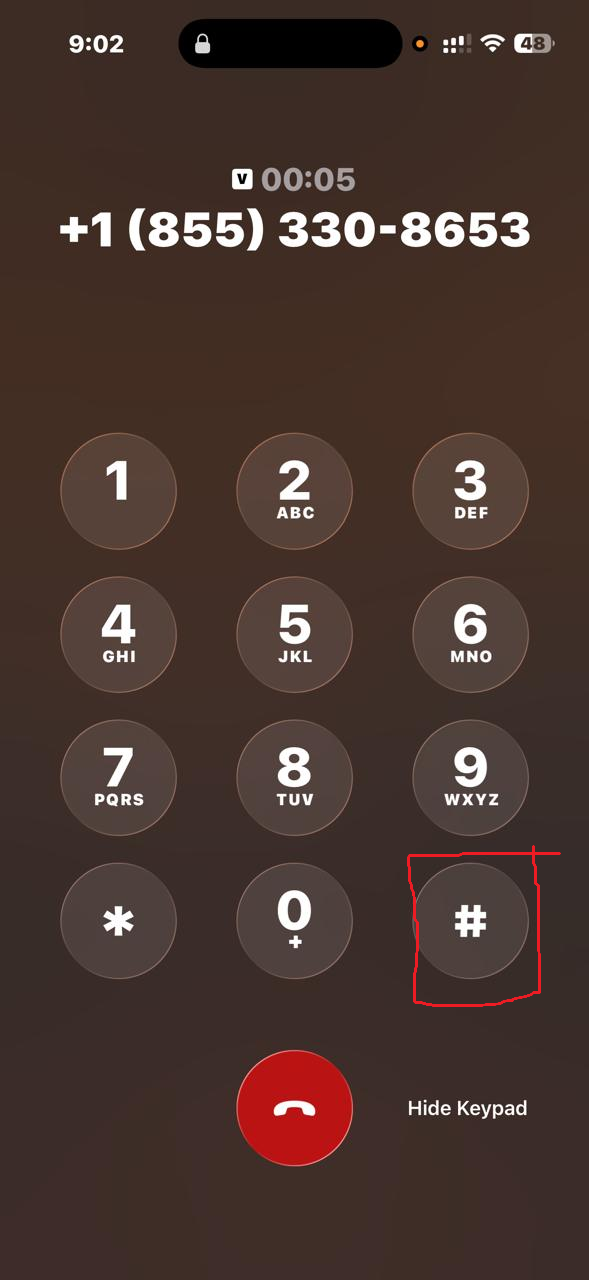
- When it confirms the number was added, click Next → Done.
💡
If you can, add a second phone method too (for example one text and
one call) so you're not locked out if one doesn't come through.
From now on
Each time you sign in to a Microsoft service on a new device or browser, Microsoft sends a code by text — or calls you. Enter the code, or answer the call and press #, to finish signing in.
⚠️
Only enter a code, or accept a call, for a sign-in you just started. If you
get a code or call you didn't ask for, don't use it — and change your password from a campus computer.
🚫
Got a new phone, or locked out? Email
itsupport@imco.edu.om from another account, or
visit the IT Office with your student ID so we can reset your verification methods.