
📧 Guide
Microsoft 365 & Email
Your student account comes with a mailbox, OneDrive storage, Teams, and the full Office suite — online and installable.
- Sign-in page
- office.com → Sign in
- Your email address
studentID@imco.edu.om- Password
- Your IMCO account password (same as computer / Wi-Fi)
- Office installs
- Up to 5 devices (Windows, Mac, phone, tablet)
Sign in for the first time
- Go to office.com and click Sign in.
- Enter your email
studentID@imco.edu.omand click Next. - Enter your account password and click Sign in.
- You'll be asked to set up account verification — follow Verify Your Microsoft Account.
- If asked “Stay signed in?”, choose Yes on your own device, No on a shared computer.
Sign in
2411234@imco.edu.om
Password
Sign in
Use your full email address, including @imco.edu.om
The Microsoft sign-in screen
What you get
Outlook
Your college email and calendar.
OneDrive
Cloud storage for your files.
Teams
Class chats, meetings, and calls.
Word, Excel, PowerPoint
Online and desktop apps.
Forms & OneNote
Surveys, quizzes, notebooks.
SharePoint
The student intranet and shared sites.
Install Office on your own device
- Sign in at office.com with your student email.
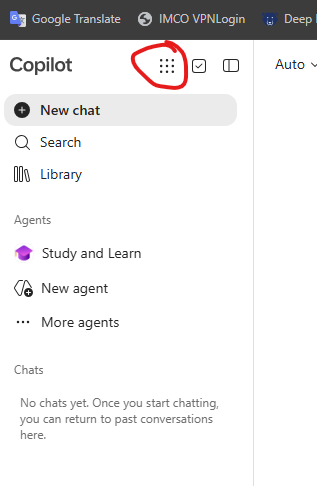
- Click the app launcher (the grid of dots) at the top of the page.
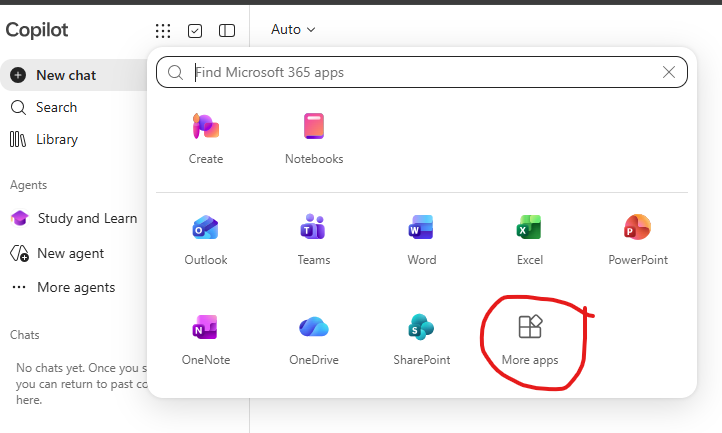
- In the panel that opens, click More apps.
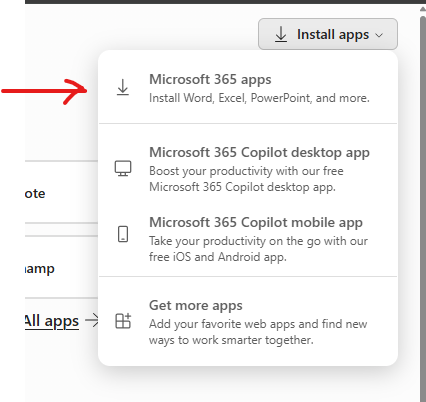
- On the apps page, click Install apps (top right), then choose
Microsoft 365 apps.
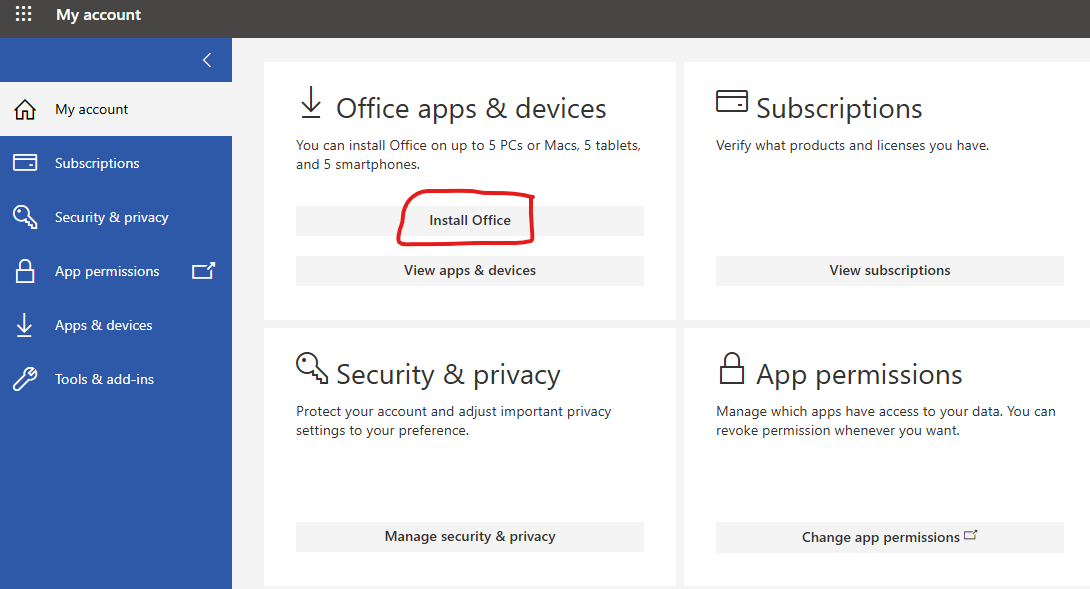
- On Office apps & devices, click Install Office to download the installer.
- Run the downloaded file and sign in with your student email when prompted.
ℹ️
Get your email on your phone: install the Outlook app from the
App Store or Play Store and add your
@imco.edu.om address.